Insert a Signature in Hancom Office Hangul: How to Add an Image and How It Differs from E-signatures

Inserting a signature in Hangul means placing a signature image in the document. Prepare an authorized image, load it via [Insert-Picture-Picture], adjust the size and position to fit the signature block, and save it with [Embed in document]. However, inserting an image does not complete the other party’s signature or any e-signature process.
A signature can feel like the final step. But the moment you insert an image, a table may expand, a name may be covered, or the signature block may jump to the next page. This is where you end up rebuilding the file at the very end, even after everything else was finalized.
We will walk through the process in order—from checking the contract before signing, to inserting the image, fixing layout shifts, and verifying the file before sending. Menu locations may vary slightly depending on your version of Hangul.
👉 If you still need to review the contract, check out Allibee on the HanAdd-ons website
Before Inserting a Signature in Hangul: Distinguish Between a Signature Image and an E-signature
Distinguish the Required Tasks: E-signatures vs. Signature Images
There are three tasks that are easy to mix up at the signing stage. The features you use—and what you need to verify afterward—are different for each.
| Required task | Feature/path used | What to verify after completion |
| ① Review the contract content before signing | Allibee contract summary and AI review | Whether a person reviewed the issues raised and reflected them in the agreed terms |
| ② Place an image in the Hangul signature block | Hangul’s Insert Picture and Object Properties | Whether the signature image is correct and the position/size is appropriate |
| ③ Request an e-signature from the other party | Workflow of a separate e-signature service | Whether the document to be signed, participants, and status are correct |
Hancom Office Contract AI: Distinguish the Roles of Review vs. Inserting Images
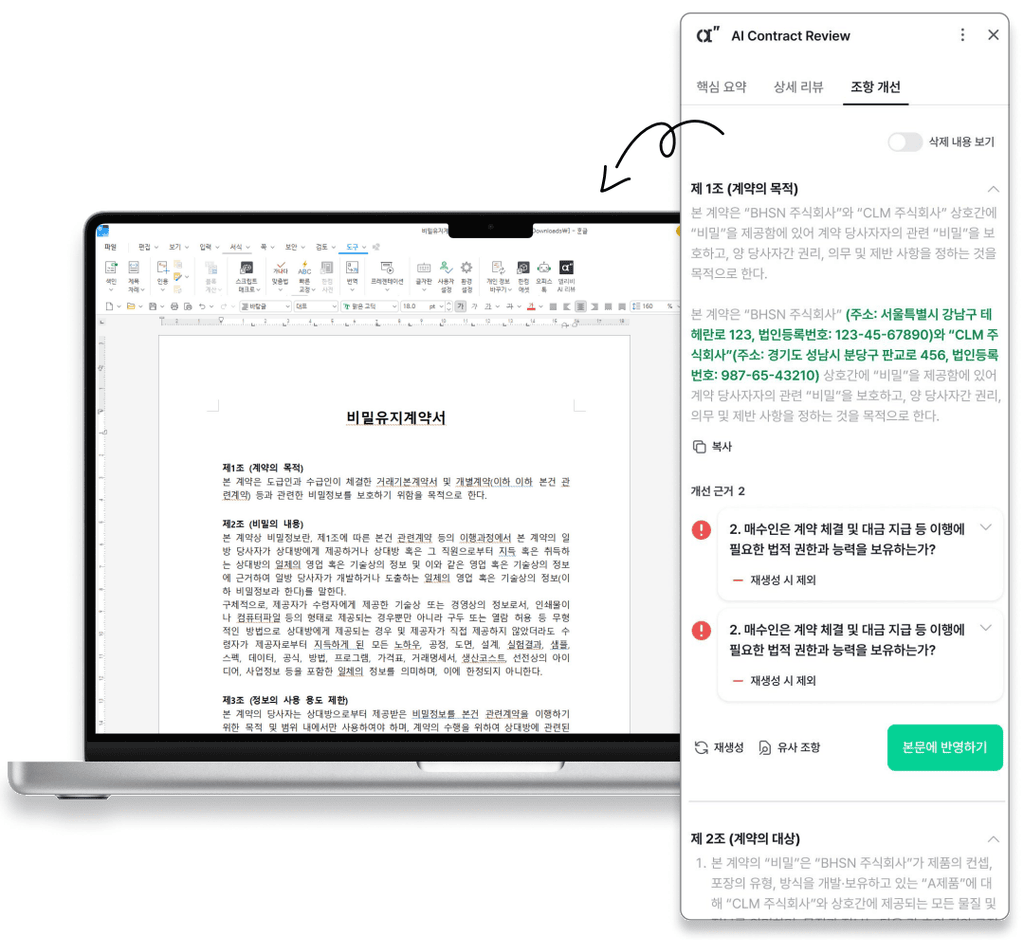
The first two are done on the same Hangul screen, but they use different tools. Contract review is handled by Allibee’s drafting, summarization, and AI review features installed via HanAdd-ons. The signature image is placed using Hangul’s built-in picture insertion. Reviewing contract content and inserting a signature image are different tasks.
Review Content Before Signing with Hangul Contract AI
Compare Hangul Contract Review Results with the Final Agreed Terms
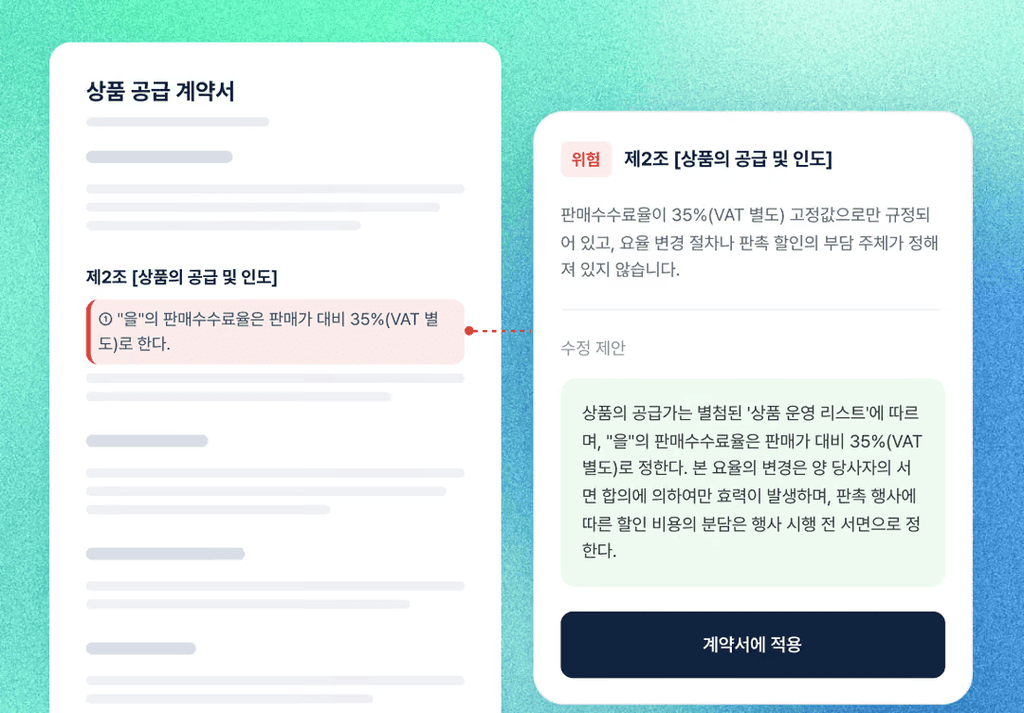
Before you sign, you must first ensure the content is correct. Allibee Review in HanAdd-ons Allibee shows, clause by clause, whether requirements are met or not based on predefined review criteria (a playbook). Using those results, verify in the original text that the parties, scope of work, payment terms, delivery date, and termination conditions match what was actually agreed.
However, you must not conclude that a contract is safe based solely on AI results or skip any necessary expert review. Allibee does not replace legal advice. For specific contract matters, you should consult a legal professional such as an attorney. (Source: Allibee AI Contract Management Detailed Product Guide)
Even if you have identified what to revise based on the review results, that does not mean you have agreed with the other party. After reflecting only the agreed changes, read it again to ensure the amounts, dates, and attachments match the main text. We summarized clause-by-clause review methods in Review Unfair Clauses with Hangul Contract AI: How to Use Allibee Summary and Review.
Check Whether the Information Can Be Provided to Contract AI
Before uploading a company contract to an external AI service, first confirm your organization’s data export/upload policy and approval scope. If it contains personal data, confidential partner information, or undisclosed pricing terms, you must assess whether the document is permitted to be uploaded.
Allibee is certified for ISO 27001 and 27017. It manages data in segregated environments by customer and does not use uploaded contracts for AI training. However, the mere fact that security measures exist does not mean uploading every sensitive contract is permitted. Your organization’s policy is the deciding standard.
Insert a Signature Image in Hangul: Follow These Five Steps
Once content verification is complete, insert the signature. Work on a copy, not the original.
Prepare the Signature Image: Verify the Final Agreed Version and the File
First, confirm that the document you opened is the final agreed version. The signature must be your own, or an image you have clearly been authorized to use for this contract. You must not crop and reuse someone else’s signature from a previous contract.
Prepare the image in a format supported by Hangul, such as PNG or JPG. Reduce excess margins around the signature and make sure the strokes are not cut off. Edit only with tools approved by your organization, and be careful not to upload the signature file to external sites.
Insert a Signature in Hangul: Run Insert Picture from the Signature Block
Place the cursor in the signature block (or where you want the image) and run [Insert-Picture-Picture]. When the [Insert Picture] window opens, select the folder and file name. The menu order and insertion methods are described in Hancom Official Insert Picture Help.
Insert the Signature Image: Set Embed in Document
Select [Embed in document] and then click [Insert]. This setting stores the image itself inside the document instead of linking only to the external file path. Since the image must remain even if you move the original file to another folder or open the document on another computer, be sure to verify it. For details, see Embed in Document Help.
If [Set size with mouse] is enabled, drag to define the desired area and set the image size. If it is disabled, the image is inserted at its original size at the cursor position. If the image is large, reduce it after inserting.

Adjust the Signature Position and Size in Hangul
Select the inserted image and adjust its size and position in [Format-Object Properties]. Keep the aspect ratio so the strokes are not squashed or stretched, and size it so it does not cover the name, title, or contract date. Placement methods vary depending on the signature block layout.
- When inserting into a blank area or a signature cell in a table: Use [Treat as character] to place the image like text. If you edit the preceding text, the image will move with it, so check again at the end.
- When you need to overlay it on top of an existing signature block: Disable [Treat as character], then in [Object Properties-Basic] under [Text wrapping], choose [In front of text]. Since the image sits above the body text, position it so it does not cover other text.
If you select [Treat as character], the [Text wrapping] setting will not apply. For the difference between the two settings, see Text Wrapping Help. One more thing: choosing [In front of text] does not remove the image’s white background. If the background covers a name or lines, you must first adjust the image file’s background and margins.

Reopen the File to Confirm the Signature Image Was Saved
Save your working file and reopen it to check the signature image, page count, table height, and the placement of dates and names. If you plan to send it as a PDF, open the converted PDF separately as well. The item to inspect is the actual file the other party will receive, not the editing screen.
👉 Check the Allibee guide for pre-signature content review on the HanAdd-ons website
When the Signature Position Shifts or the Image Does Not Appear in Hangul
Hangul Signature Errors: Check Insertion and Layout Settings
If the signature shifts or does not appear, reinserting the image will not solve the issue. In most cases, the cause lies in the insertion method and layout settings.
| Symptom | What to check first | How to adjust |
| The signature moves when you edit the previous sentence | Whether [Treat as character] is enabled | After finishing body edits, realign the signature position |
| Lines or tables expand because of the signature | Image size and layout | Reduce the image size and confirm it fits correctly within the cell |
| The name/line under the signature is covered | [In front of text] setting and image background | Adjust position/size and check the background/margins |
| The image does not appear in a different environment | Whether [Embed in document] is enabled | Check whether the image is only linked to an external file, then enable embedding |
| It looks positioned differently in the PDF | The actual layout in the converted file | Adjust in the Hangul original, then reconvert and verify |
After Editing the Contract Body, Recheck the Signature Position
Editing the body after inserting a signature happens more often than you might think. You may change just one line for a payment date, and the signature block can jump to the next page.
If you move the signature first, you will end up repeating the same work. First, finalize the body and table layout, then confirm that the name and signature are placed together in the correct party’s signature block.
What to Check Before Sending After Signing a Contract
Check Contract Content and Signing Authority Together
This is the final check before sending the file. The items below are for pre-delivery verification and are not criteria for determining legal validity.
☑️ It is the final document agreed with the other party, not a previous draft.
☑️ You have verified the parties’ names, company names, and the signer’s title and authority.
☑️ The amount, payment date, contract term, and attachment contents match the final agreement.
☑️ You did not use someone else’s signature without permission.
☑️ The signature image does not cover the name, date, or body text.
☑️ The image is embedded in the document and displays correctly after saving.
☑️ You rechecked for missing/duplicate pages and the signature position in the file to be sent.
☑️ You have decided on the signing method and delivery channel to use with the other party.
Verify the Agreed Signing Method (Including E-signatures) and the Revised Version
If you corrected content during your checks, do not send it as-is even if the existing signature image remains. Inform the other party of the changes and request confirmation of the revised version and the signing process again.
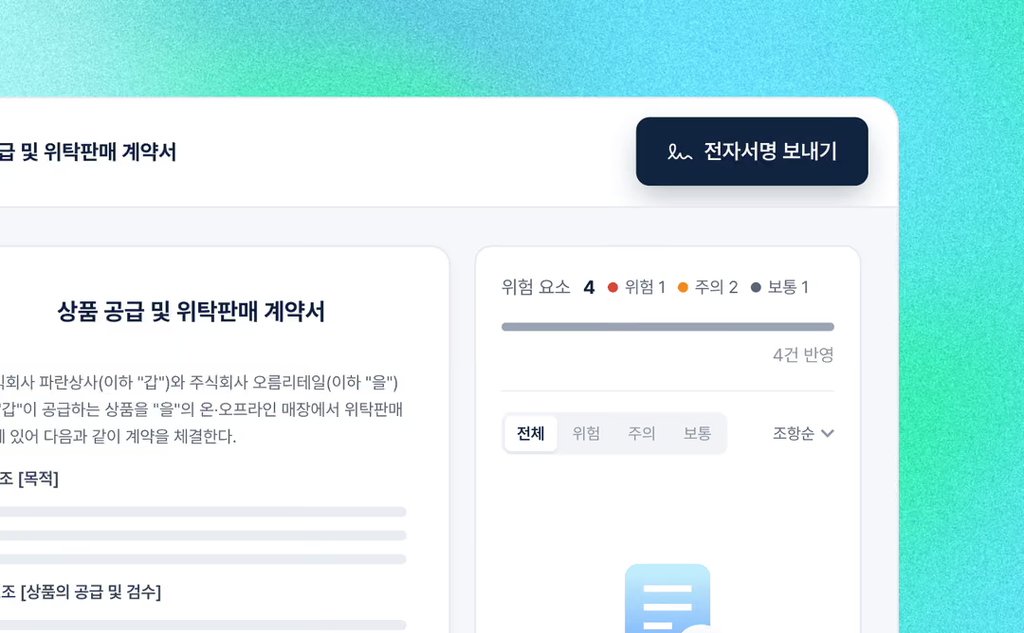
If you need the other party’s e-signature, check the scope and procedure on the Allibee official website. HanAdd-ons Allibee supports contract drafting, review, and summarization, while e-signatures are handled separately in the Allibee web service. E-signatures on Allibee Web are provided free of charge with unlimited use, regardless of plan.
Hangul Signature Insertion and E-signature FAQ
Do I need Allibee to insert a signature image in Hangul?
No. Insert Picture is a built-in editing feature in Hangul. Allibee’s role is to draft the contract before signing and to check the content using summaries and AI review.
If I insert a signature image, is the e-signature completed?
Inserting an image alone does not perform the request, verification, and completion steps of an e-signature service. You must separately confirm the signing method required by the contract and the party verification procedure.
Does a contract with an inserted signature image have legal validity?
It cannot be determined solely by whether an image is present. You must review the specific contract, the parties’ intent and authority, and the applicable requirements together. If it is an important contract or there is a risk of dispute, consult a legal professional.
If I embed the signature file in the document, can others not extract it?
Images embedded in a document can still be saved as separate files. [Embed in document] is a setting that determines how the image is stored, not a security feature that prevents copying and reuse.
What should I do if I find a typo after signing?
You must not quietly change and resend a document that contains a signature. Even for typos, inform the other party of what changed and align with the contract owner on whether confirmation of the revised version and re-signing are required.
After Inserting a Signature in Hangul, Cross-check the Pre-delivery Checklist
Inserting a signature image itself takes only a few minutes. The part that actually takes time is verifying whether the file is truly ready to be sent.
Open the file right before sending and compare it against the checklist above. Check in order whether the signature covers the name or date, whether the image remains after saving, and whether any pages are missing or duplicated. If you are sending a PDF, verify the converted version using the same criteria.
If there are still clauses that raise concerns, it is better to postpone signing for now. Review comes first. If you check Allibee’s usage environment and features on HanAdd-ons, you can complete review and drafting on a single screen starting with your next contract.
👉 Check the contract operations support service and terms of use on the HanAdd-ons website