How to Create AI Meeting Minutes: From Speech-to-Text Conversion with Daglo to Hangul Meeting Minutes

The meeting is over, and you have the recording file, but if your Hangul meeting minutes are still a blank page, it can feel daunting. Reviewing and organizing a one-hour meeting from scratch can sometimes take more time than the meeting itself.
Especially for committee meetings, deliberation councils in public institutions, or business meetings in corporations, a summary alone is not enough. You need to record what was decided, why it was decided that way, and who will do what by when.
By installing Daglo from Hancom Add-ons, you can record meetings or upload recording files within Hangul to convert them into text, review AI summaries, and even create meeting minute documents. There’s no need to copy and paste results from other apps; the process continues directly within the Hangul document you are working on.
This article outlines the AI meeting minute creation process step-by-step, from installation and account verification to recording, transcription, summary review, meeting minute generation, and pre-submission checks.
Explore the Daglo Usage Environment in Hancom Add-ons
Before Creating AI Meeting Minutes: Check Hangul Environment and Recording Scope
Install Hangul AI Add-on Daglo and Verify Account
Daglo is a voice AI service developed by Actionpower that transcribes meeting, lecture, and interview audio using its proprietary Korean STT engine and summarizes it with AI. In Hancom Add-ons, it runs from the additional features menu in Hangul, offering three functions: transcription, AI summary, and meeting minute generation.
It is available in Hangul for Windows Hancom Office 2024 or later versions, and the installation order is as follows:
- Update Hangul to version 13.0.0.3379 or higher.
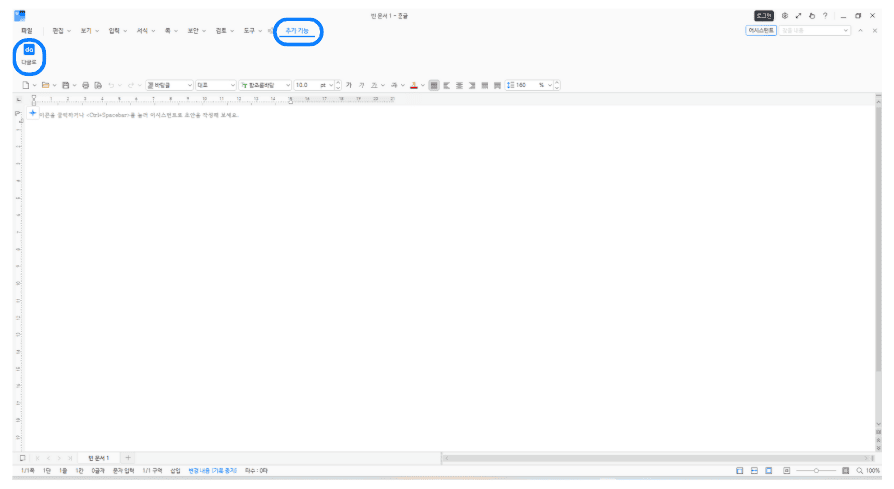
- Open Hancom Add-ons from the Additional Features menu at the top of Hangul and install Daglo.
- After restarting Hangul, run Daglo from Additional Features.
When you run it for the first time, a login screen appears. If you log in with an existing Daglo account, the list of boards saved in that account will be displayed as is. If you don’t have an account, you can sign up directly within the add-on. If you have many boards, you can filter them by date, folder, or file type using the Filter button to the right of the input field above the list.
If you use both a business account and a personal account, first check which account you are logged into. The latest supported environment can be found in the Hancom Add-ons Installation Guide.
Before Recording Meetings: Confirm Recording Consent and External Service Usage Standards
Before recording a meeting, ensure you inform attendees and obtain their consent. Policies for using external AI services and standards for handling sensitive information vary by organization and company. If the meeting’s permissible scope is unclear, it is safer to check with the responsible department first.
Daglo holds ISO 27001 certification, an international standard for information security. Nevertheless, before uploading business data, please check the data processing conditions in Daglo’s Privacy Policy and your organization’s external service usage standards.
(Source: Daglo Official Guide)
Speech-to-Text Conversion: Choose Between Recording and File Transcription
Start New Meetings with Recording, Existing Files with Transcription
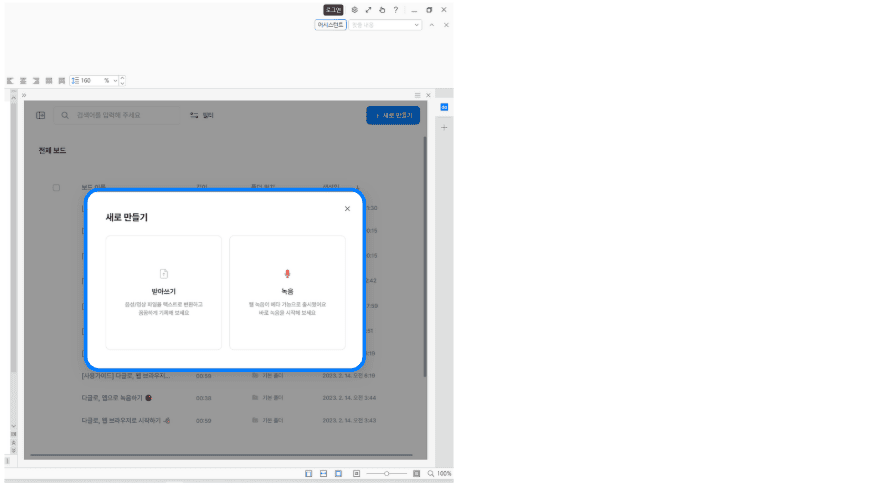
In the ‘Create New’ section at the top right of the Daglo panel, select your input method. If it’s a meeting you’re about to conduct, choose ‘Record’. If you have an existing recording file, start with ‘Transcribe’.
- Direct Recording: If you select ‘Record’, you can set transcription options at the top of the screen and check the recording duration on the bar below. The center button allows you to pause or resume recording, and when the meeting ends, press ‘End’ at the bottom right. If you started incorrectly, you can cancel the recording with ‘Cancel’ at the bottom left.
- Recording File to Text Conversion: Select ‘Transcribe’ and upload an audio or video file. After setting the options, press ‘Transcribe’ at the bottom right to start the conversion.
Before Transcription: Prepare Recording Environment and Original Files
Before uploading files, check the supported file formats, length, number, and capacity within the add-on screen and your current plan. If the meeting was long, it’s advisable to first check if your current account can handle the processing scope.
If you record directly, the recording quality directly impacts the transcription quality. Even by following these three simple guidelines, reviewing the results will be much easier:
- Place the microphone close to the speaker and reduce ambient noise.
- Ensure only one person speaks at a time to prevent multiple people from talking simultaneously.
- At the end of the meeting, verbally summarize the decisions once more and confirm them with attendees.
If you have an existing recorded file, keep the original separately and organize the filename according to internal standards so you know which meeting it belongs to.
(Source: Daglo Official Guide)
Confirm Meeting Decisions with AI Summary and Script
Grasp the Flow with AI Summary and Confirm Context with Script
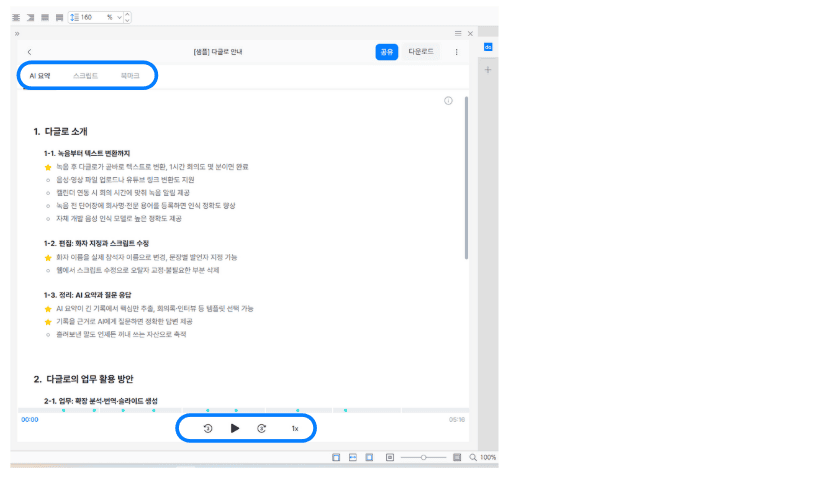
When you open a board after transcription is complete, you can view the AI summary and the full script together. The summary helps grasp the overall flow of the meeting, while the script is used to confirm the conditions of statements and their surrounding context. If you have any doubts, compare them with the original audio using the audio playback and speed control functions at the bottom of the screen.
| Item to Check | What to look for in the AI summary | What needs human re-verification |
| Main Agenda | What topics were discussed | Are there any missing or mixed-up agenda items? |
| Decisions | Content summarized as agreed upon | Have proposals or review comments been changed to confirmed decisions? |
| Follow-up Tasks | Responsible person and action items | Are the actual responsible person, completion criteria, and deadline correct? |
| Figures and Names | Date, amount, project name | Does the notation match the original audio and meeting materials? |
Reconfirm Decisions, Responsible Parties, and Deadlines
To review, to proceed, and to confirm are all different states. In the process of shortening content, summaries can blur these distinctions, so check if any content not agreed upon in the meeting has been included as a decision. If the responsible party or date is unclear, do not estimate; instead, mark it as Confirmation Needed.
Once you’ve grasped the overall agenda from the summary, re-locate the decisions to be included in the meeting minutes from the script. If there are missing parts regarding the reasons for decisions or follow-up actions, supplement them by listening to the original audio.
(Source: Daglo Official Guide)
Find Basis for Statements with Speaker Identification, Timestamps, and Bookmarks
Organize Meetings and Interviews with Speaker Separation and Timestamps
You can turn on speaker identification and timestamp display from the gear icon (Settings) at the top right of the script. This distinguishes who spoke at what time, making it convenient to find specific statements again.
However, speaker identification is a function that divides and shows speaking segments; it does not provide the real names of attendees. When writing names or positions in meeting minutes, cross-reference them with the attendee list and actual statements.
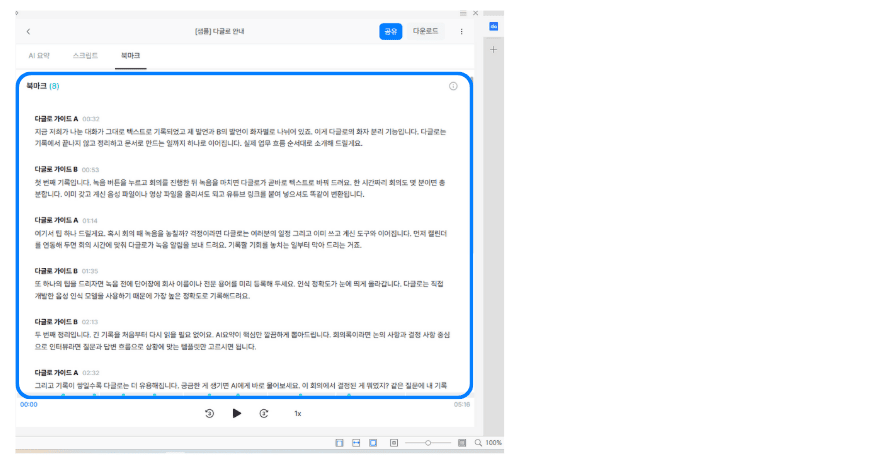
If there’s a paragraph you need to recheck, use bookmarks. You can add a bookmark by hovering your mouse over the top right of the paragraph, and all bookmarked paragraphs can be viewed together on the bookmark screen. Pre-marking sections where decisions or deadlines are mentioned will reduce the time spent finding supporting evidence when writing meeting minutes.
(Source: Daglo Official Guide)
Compare Conditions and Deadlines with a Committee Meeting Minutes Example
The following is a hypothetical statement created for explanation, not an actual recording or Daglo output.
“I will prepare a draft of the announcement by next Wednesday. However, the distribution date will be re-determined after budget confirmation.”
Two things to confirm from this statement are the draft preparation deadline and the undetermined distribution date. If this is summarized as ‘announcement distribution confirmed for next Wednesday,’ the meaning changes completely.
Bookmark this paragraph and confirm who the draft’s responsible person is, and exactly what date ‘next Wednesday’ refers to based on the meeting date. Do not omit the condition that it’s ‘before budget confirmation’.
Check Daglo Usage Guide in Hancom Add-ons
After Automatic Meeting Minute Generation, Adjust to Hangul Meeting Minute Format
Generate Meeting Minutes to Directly Insert into Hangul Document
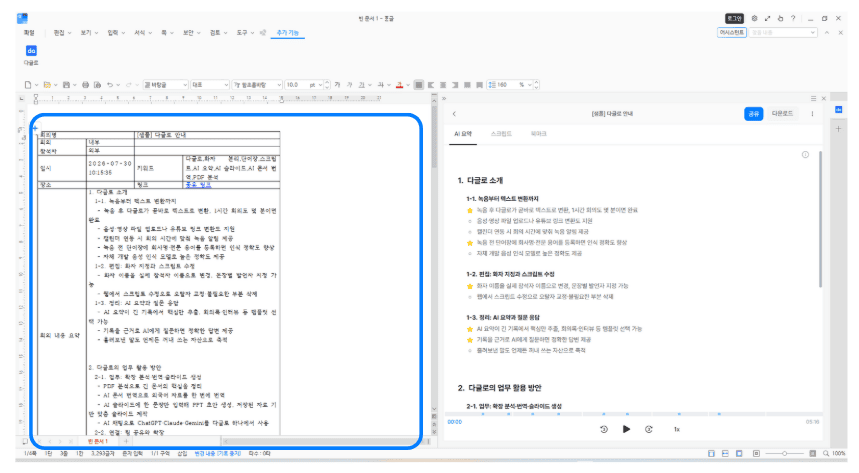
From the three-dot menu at the top right of the reviewed board, select Generate Meeting Minutes. After choosing whether to include the script, press Generate, and the board content will be exported to a Hangul document, allowing you to view the meeting minutes directly within Hangul. If the script is included, the AI summary will be inserted at the top, and the full script below.
Detailed instructions for each screen operation can be found in the Daglo Official Guide: Using Daglo in Hancom.
Decide whether a concise, summary-focused document is needed or if the context of statements must be preserved, based on submission standards. Including the script does not necessarily fulfill all recording obligations, and even if the script is omitted, the original recording must be stored according to organizational standards.
Organize Decisions and Follow-up Actions in Hangul Meeting Minute Format
Once the meeting minutes are generated, compare them with your organization’s meeting minute format. Check if the meeting title, date, time, location, attendees, agenda items, decisions, and follow-up actions are all included, and arrange the item order and layout in Hangul to match the format. Also, prepare any necessary attachments for approval.
For the hypothetical example above, follow-up actions could be organized as follows:
| Item | Content |
| Follow-up Action | Prepare draft announcement |
| Responsible Person | Confirmation Needed |
| Deadline | Next Wednesday (Actual date based on meeting date needs confirmation) |
| Remarks | Distribution date to be determined after budget confirmation |
After confirming the responsible person and date, reflect them in the final meeting minutes. If you wish to refine the sentences further, you can also refer to methods for AI-powered document correction in Hangul.
(Source: Daglo Official Guide)
Before Submitting Hangul Meeting Minutes: Review Content and Sharing Scope
Meeting Minutes Content Accuracy Checklist
Once automatic meeting minute generation is complete, check the items below before submission, then submit according to your organization’s approval process.
- Basic Information: Do the meeting title, date, time, and attendee list match the actual data?
- Decision-making: Are proposals, deferrals, conditional agreements, and final decisions clearly distinguished?
- Follow-up Tasks: Are the responsible person, deadline, and deliverables clear?
- Record Accuracy: Have names, project names, amounts, and dates been cross-referenced with the original audio and meeting materials?
- Distribution Criteria: Does it contain any personal information or confidential statements? Are the recipients and scope of attachments appropriate?
Before Attaching Full Script: Check Distribution Scope
The full script may contain personal information or internal review comments not revealed in the summary. Creating meeting minute documents and determining sharing permissions are separate matters, so separately confirm the final file’s recipients, storage location, and access permissions according to organizational procedures.
AI Meeting Minutes and Daglo FAQ
What Daglo features can be used within Hangul?
In Daglo within Hancom Add-ons, you can use transcription (recording, file upload), AI summary, and meeting minute generation. It provides core features necessary for document creation, allowing you to proceed from voice recording to summary/review and meeting minute creation within the Hangul document workflow. Other Daglo features, such as YouTube transcription, PDF analysis, and AI chat, can be accessed on the daglo.ai website or mobile app with the same account. Clicking the Use AI Features Now menu in the add-on will connect you to the web page.
Can I view boards from an existing Daglo account?
Yes. If you log in with an existing Daglo account, you can view that account’s boards in Hangul. When handling business data, first check that you are logged into the correct account and that the correct board is open.
What is Daglo’s transcription accuracy?
Daglo uses its proprietary Korean STT engine. Based on international standard benchmarks and its own real-world data benchmarks, transcription accuracy is up to 99%, and speaker separation accuracy is over 95%. Actual results may vary depending on the recording environment, noise, and speaking style, so cross-reference important information with the original audio.
Are bookmarks and attendee names automatically organized?
You manually add bookmarks to desired script paragraphs. Speaker identification and timestamps can be turned on in the settings, but attendee real names must be confirmed separately. If the meeting minutes include names, cross-reference them with the attendee list and statements.
Is the Daglo add-on free?
There are no separate charges for the add-on itself. However, transcription and summary follow the plan (Free, Pro, Premium, Team) and credit conditions of your Daglo account, and payments are processed through Daglo. You can start with a free plan, and the scope of use and current usage can be checked in your Daglo account and the official pricing guide.
Can I submit the generated meeting minutes immediately?
Submitting without review is not recommended. Check decisions, responsible parties, dates, amounts, and sensitive information, and ensure compliance with your organization’s format and approval criteria before submission.
From Recording to Hangul Meeting Minutes, All in One Go for Your Next Meeting
The essence of AI meeting minutes is to delegate transcription, allowing humans to focus on verifying decisions and their basis. For your next meeting, try starting the recording with Daglo. Cross-reference the summary and script with the original audio, collect sections to review with bookmarks to organize decisions, responsible parties, and deadlines, then finalize according to the Hangul format and sharing standards.
Check Daglo Installation Guide in Hancom Add-ons